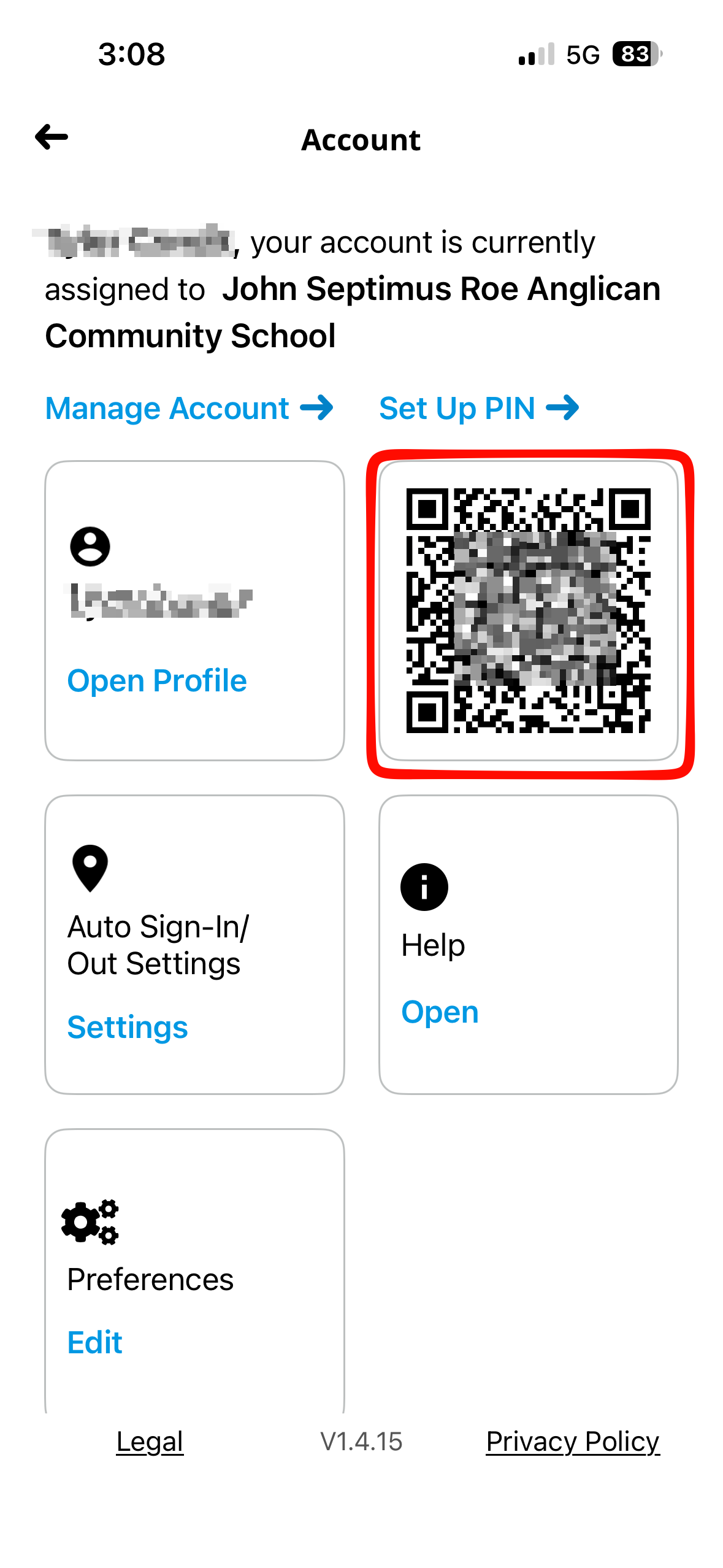
The OnLocation Mobile app provides a quick way to sign in at Employee OnLocation kiosks. The mobile app allows you to use a QR code to sign in, instead of entering in your name.
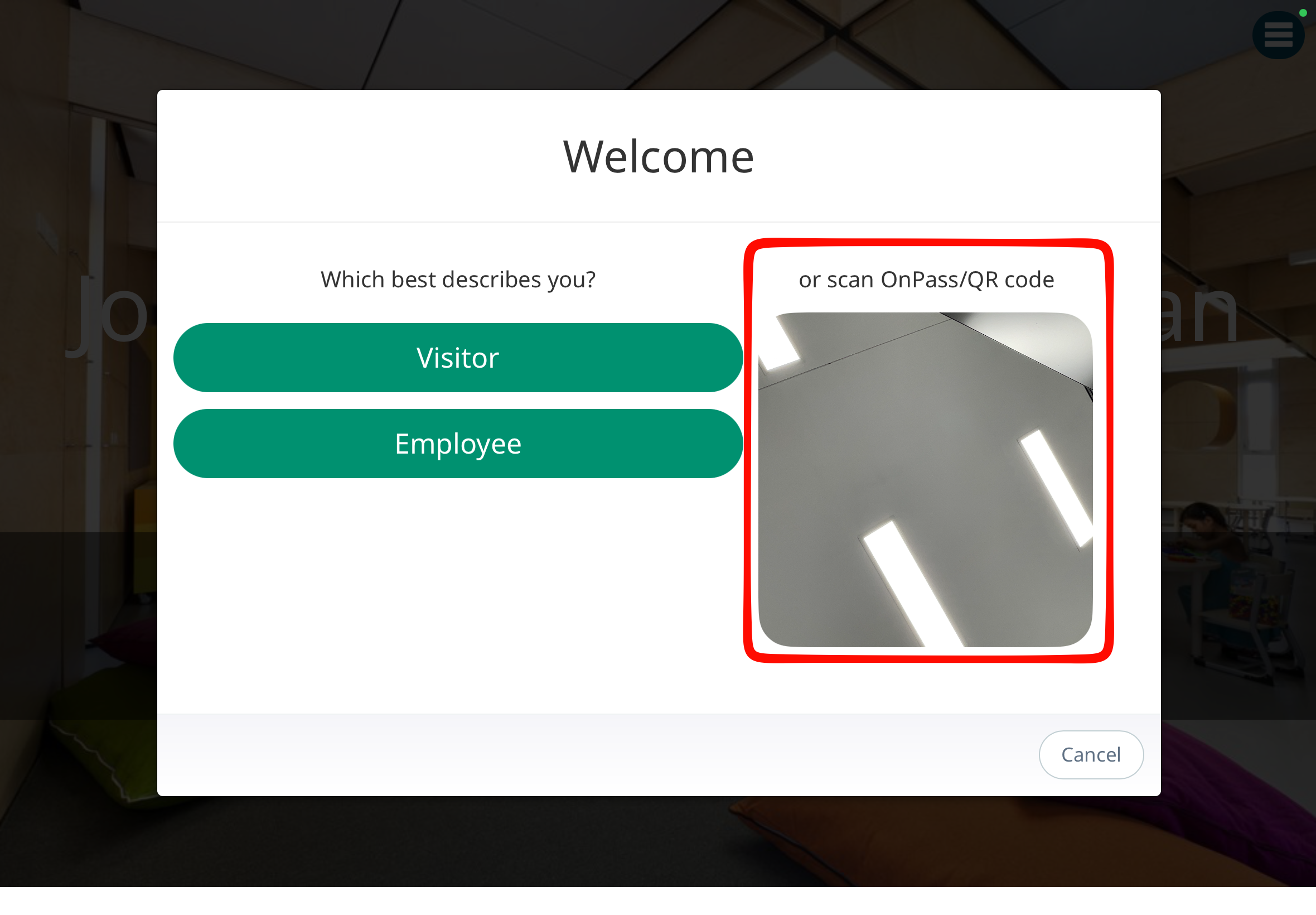
This is completely optional, however may be preferred by some staff.
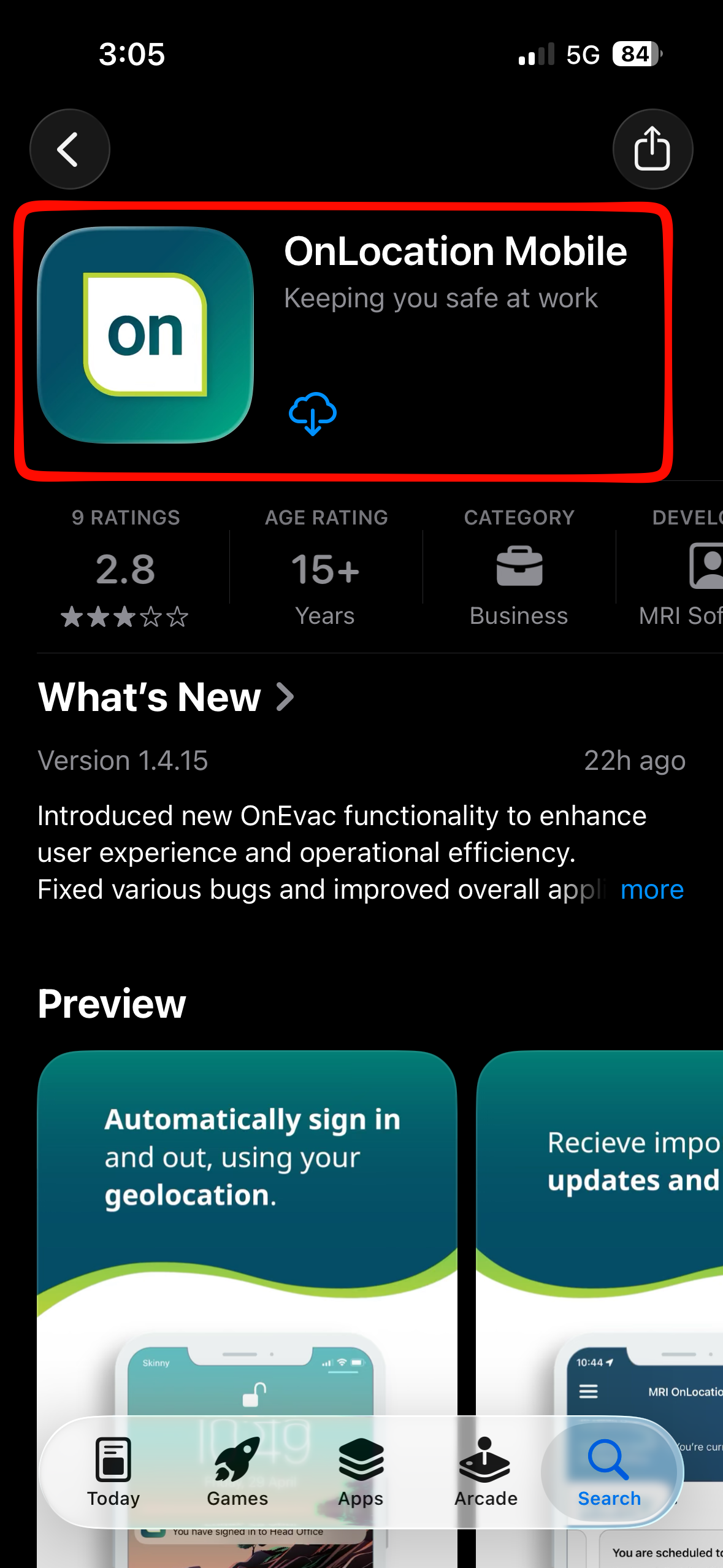
1. Download the OnLocation Mobile app from your phone's app store. Below is a picture of what the app looks like:
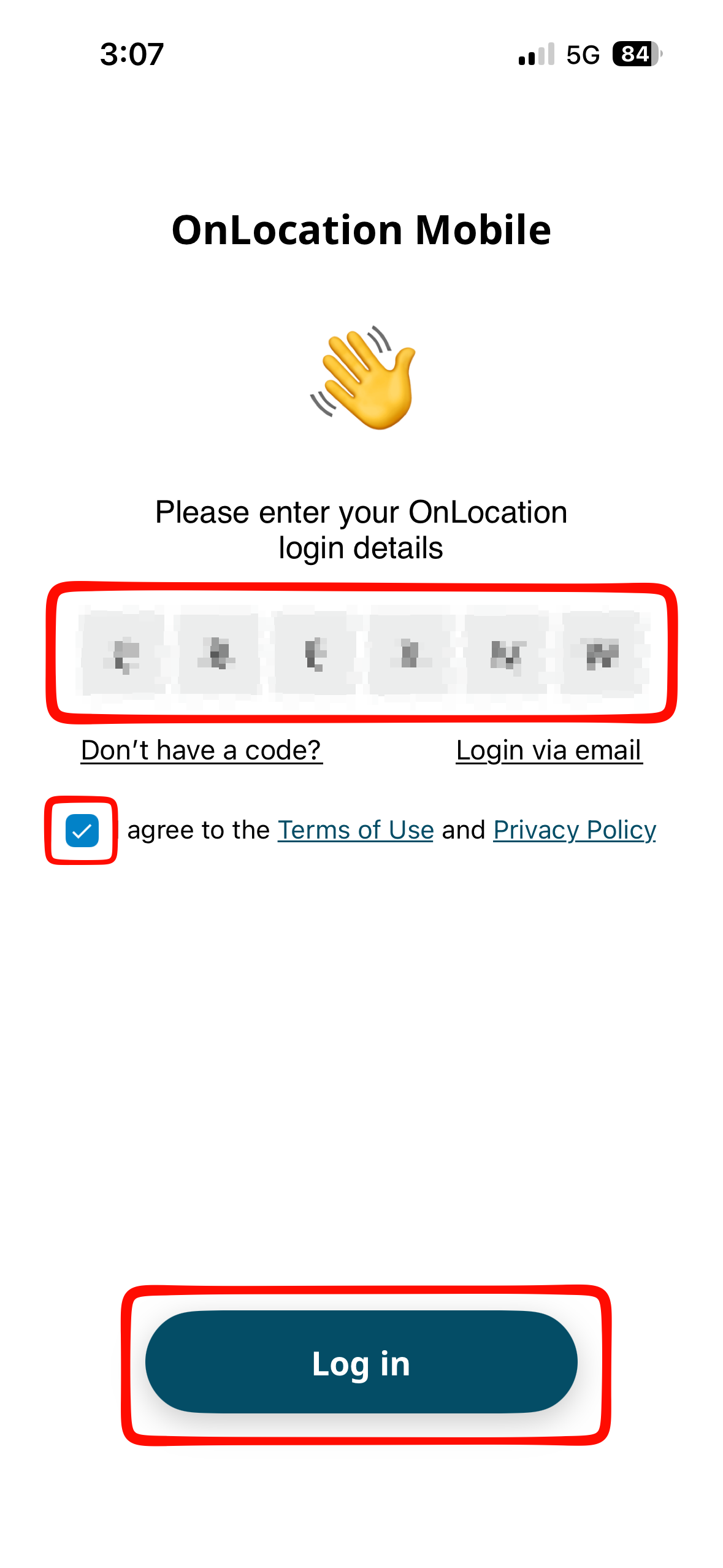
2. Enter your OnLocation login code (provided by an OnLocation administrator), agree to the terms of use then select Log in.
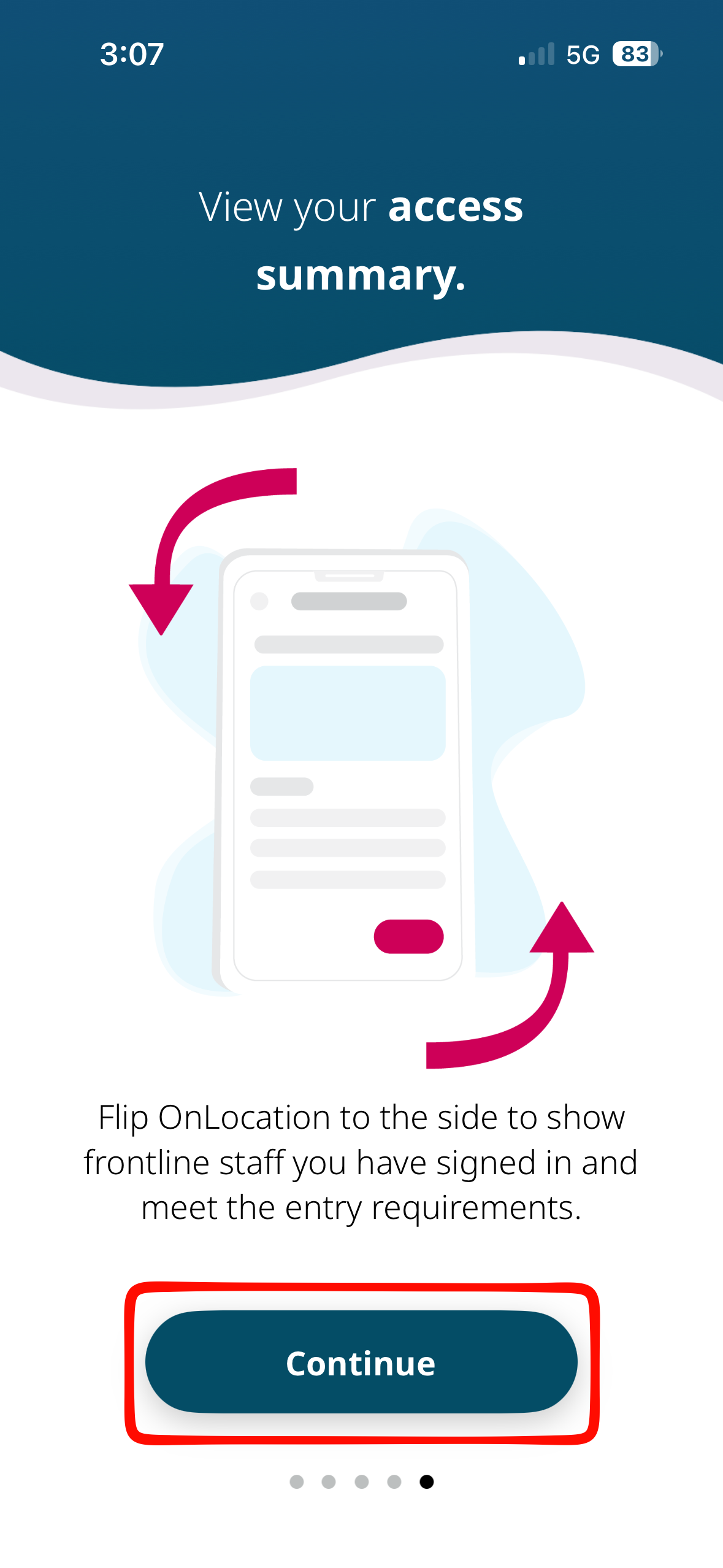
3. Click Continue.

4. Swipe through prompts then click Continue again.
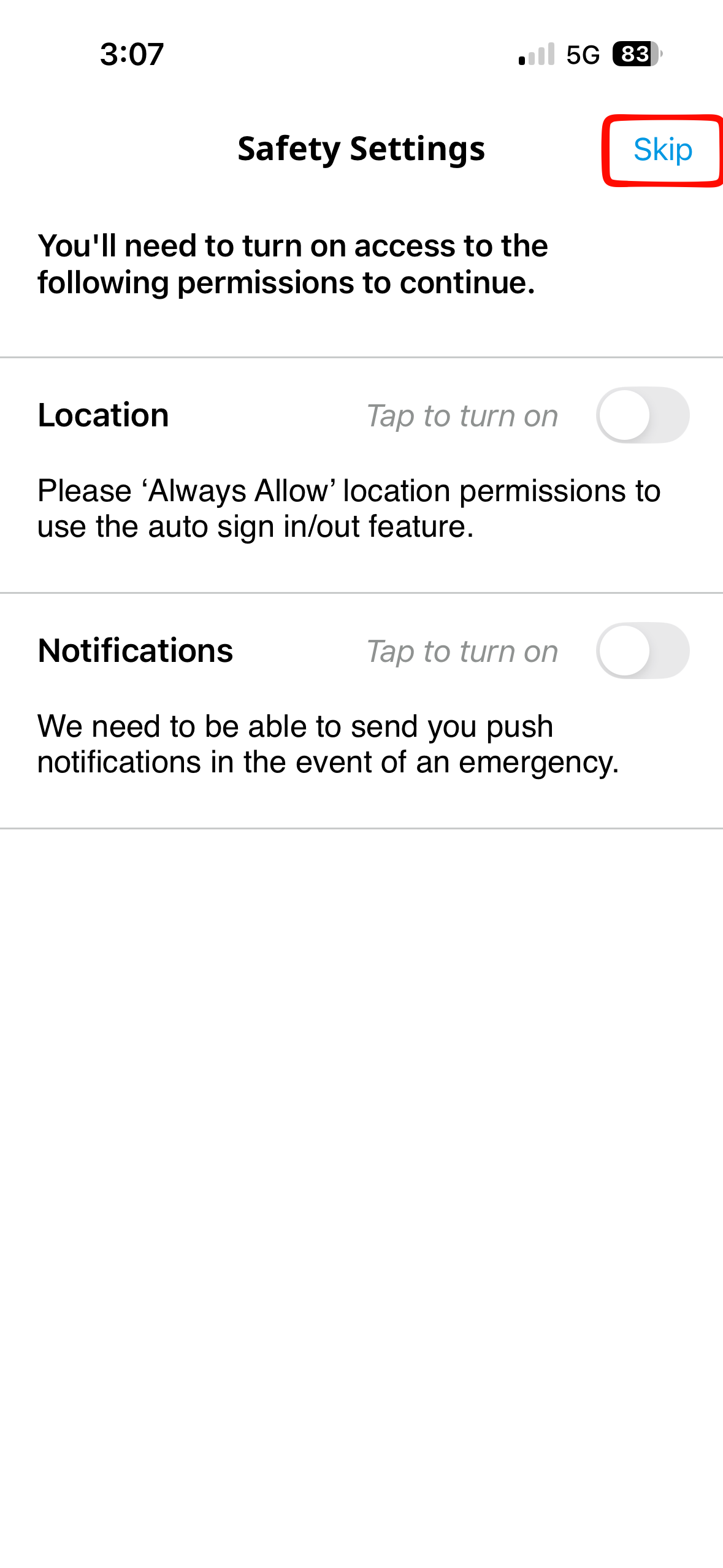
5. Location and Notifications do not have to be turned on. Click Skip.
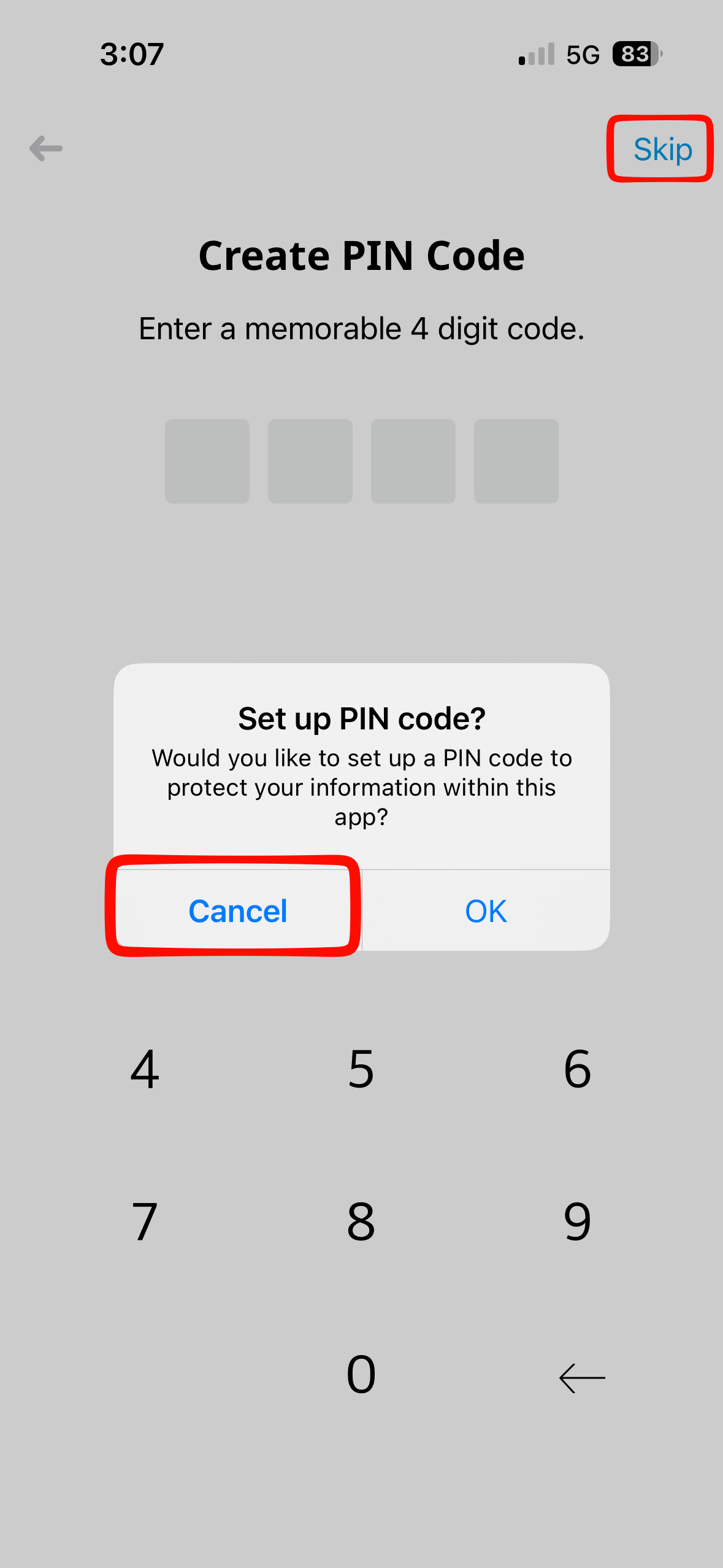
6. PIN code is not required, but can be setup if you like. To skip the setup click Cancel -> Skip
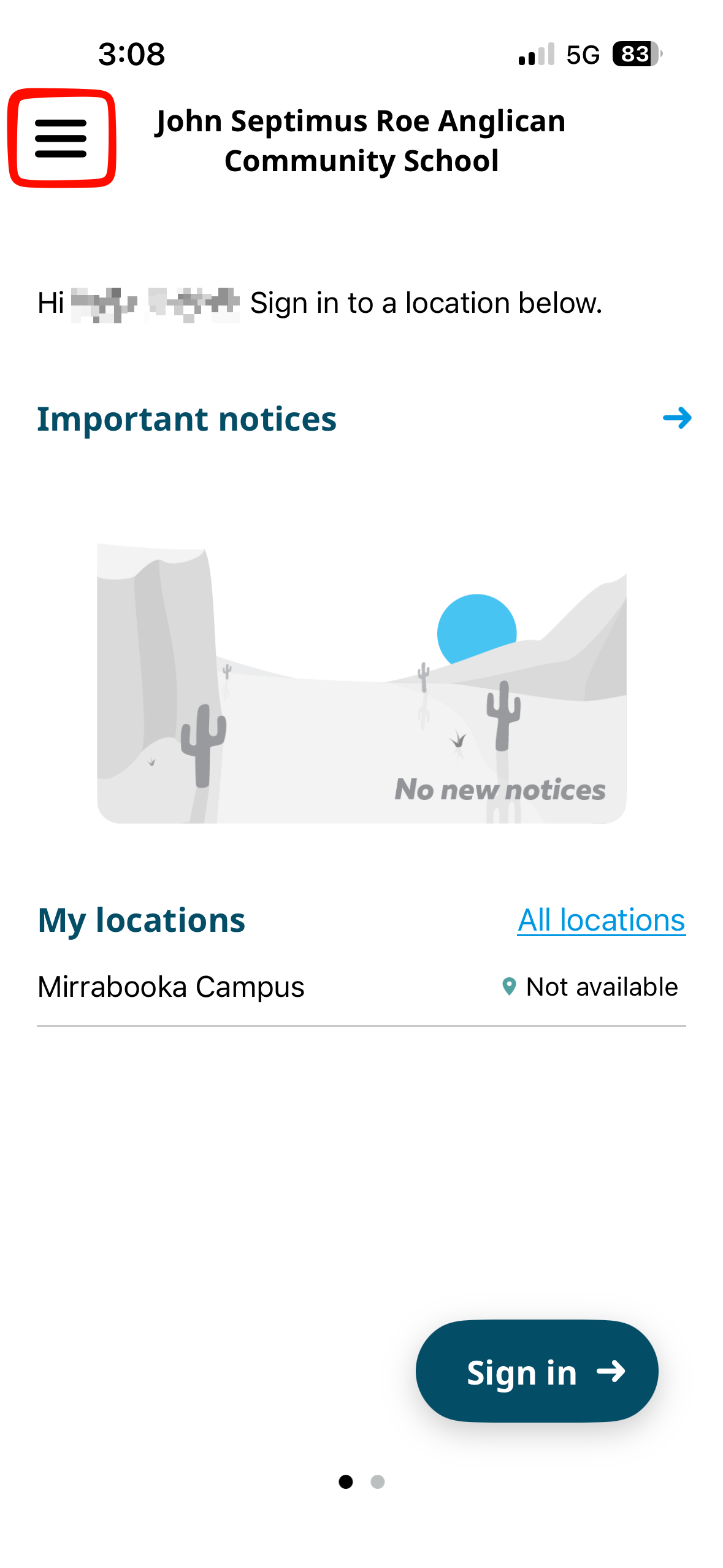
You have now logged in. Follow the below steps to access your staff QR code
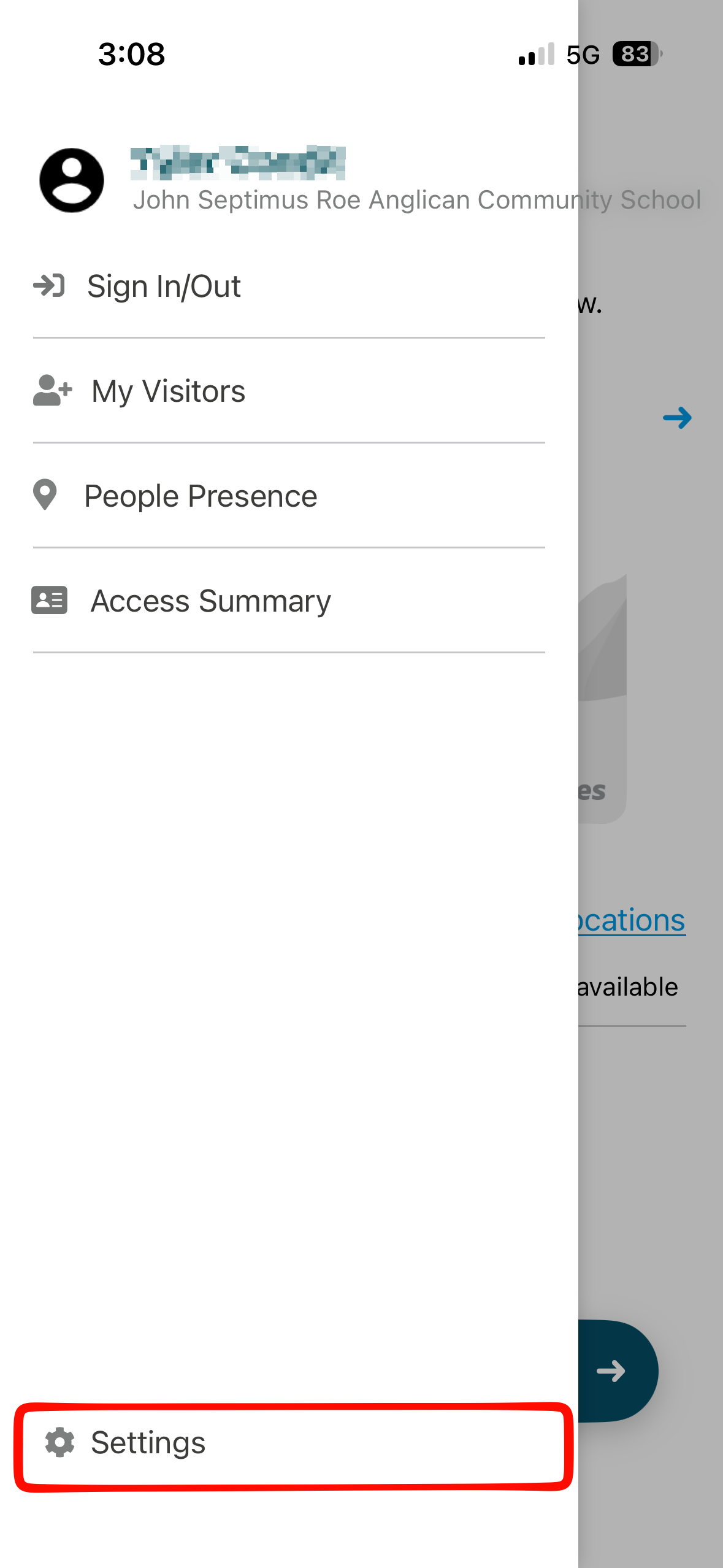
7. Open the hamburger menu
8. Click Settings
9. You can now view your personal QR code, which can be used to sign in or out of OnLocation kiosks